

AutoCAD Integration
Georeferencing and exporting AutoCAD data
Problem and Objective
A GIS analyst for NC State has been asked to develop a geodatabase for future management of campus buildings and facilities. The information needed to create this geodatabase is mostly found in AutoCAD files. These AutoCAD files need to be georeferenced and properly exported to create a new geodatabase of features in ESRI feature class format.
Analysis Procedures
To geo-reference the AutoCAD master file data and create a new database, I used ArcGIS Pro version 3.1.3. To geo-reference the campus data master file, I first used the Define Projection tool on an orthophoto of NC State and then georeferenced the data using the orthophoto, the campus data master file and 4 control points. To properly export the data, I used tools from the Data Management Toolbox and Conversion Tools Toolbox, including Feature to Polygon and Feature Class to Feature Class.
The first task was to properly geo-reference the AutoCAD data in ArcGIS. To do this, I first added an orthophoto of NC State to the map pane in ArcGIS. I then used the Define Projection tool on the orthophoto and changed the projection to NAD 1983 StatePlane North Carolina FIPS 3200 (US Feet). This projection was determined using the Read Me file in the data’s original folder. The projection of the Map in ArcGIS was then changed to the same projection, ensuring that all future data added would be in the proper projection.
The AutoCAD NC State campus master file was then added to the project. I then went into the geo-reference tab and used Move to Display to get a rough centering of the campus data. I then visually chose two possible control points, in opposite corners of the campus data for the best fit. Next I geo-referenced the campus data using control points. One control point was placed on the campus data, then a reference control point was placed on the orthophoto at the same location. Four control points in total were used.
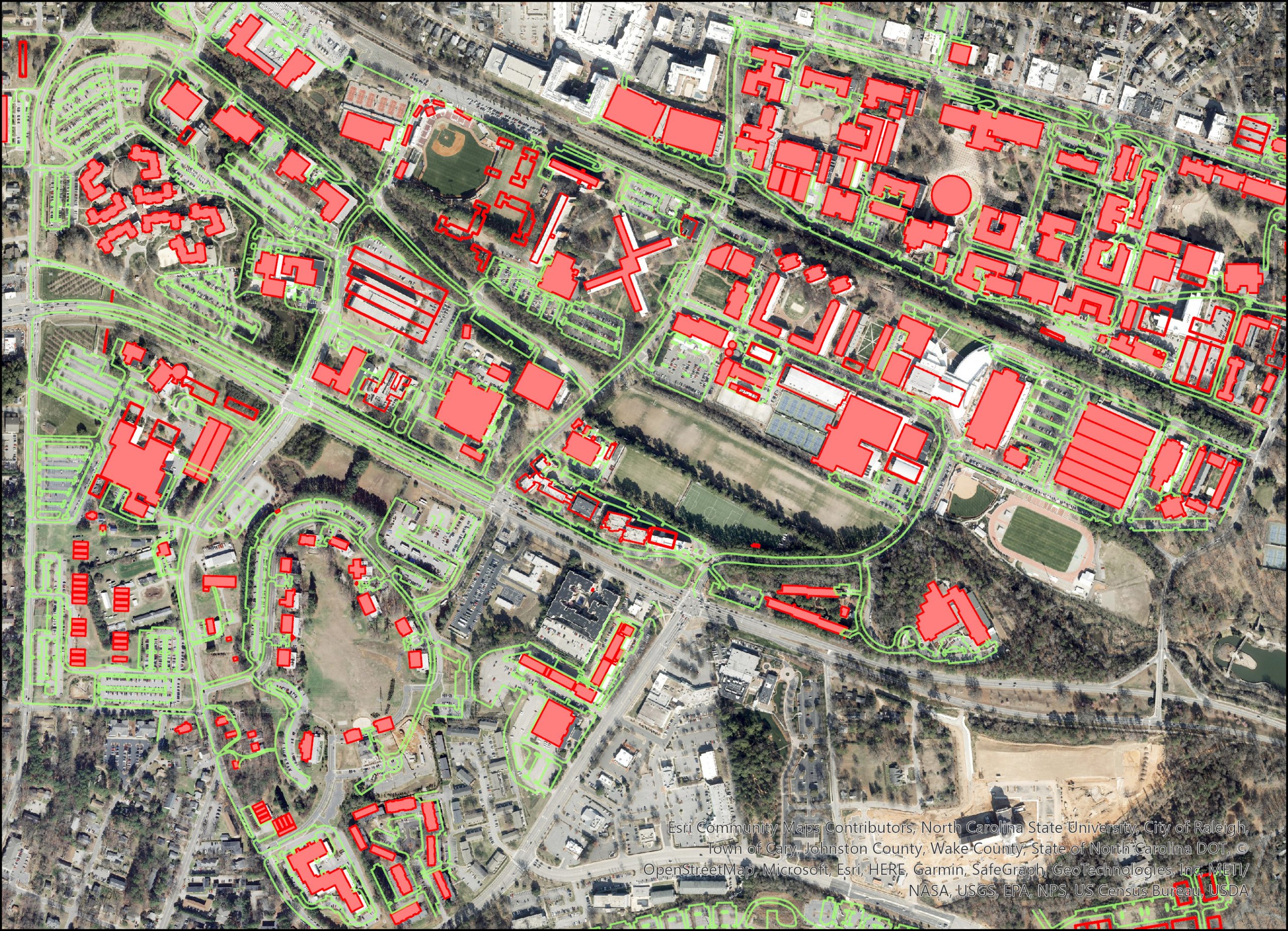
The next task was to create a geodatabase of the features we are interested in. The features we wanted to save were the streets, sidewalks, streams / creeks, lakes and ponds, buildings and athletic fields. In the campus data master file, most of the features had entries in the Polyline and also the Polygon layers.
For the streets, sidewalks, and streams, just the features from the Polyline layer were used. For the lakes and ponds, the Polygon feature layer was used. For the athletic fields and campus buildings, both the Polyline and Polygon layers had features we wanted combined and exported to our new geodatabase. Many of these polyline features were lines that were not closed so ArcGIS didn’t read them as a polygon, even though that was the preferred feature. To fix this and combine the two datasets, the Feature to Polygon tool was used in the Data Management Toolbox.
For buildings, four total layers were used – Future and Existing buildings in both the Polyline and Polygon layers. For athletic fields, the Polyline and Polygon layers were used as input and I combined them to one polygon layer. Then, the Feature Class to Feature Class tool was used to export all these layers into our new geodatabase.

Results
Application & Reflection
Many civil departments use AutoCAD to create and model designs, and this information often needs to be properly imported into GIS programs like ArcGIS Pro before analysis and mapping can take place.
Problem description
A utility company is trying to digitize power lines throughout the United States. The power line information is contained within AutoCAD files and needs to be imported into ArcGIS and properly geo-referenced before digitization can be done.
Data needed
AutoCAD data of power lines and other utilities from the utility company and reference photos for georeferencing.
Analysis procedures
First, I would import AutoCAD data and reference photos for the desired area. Using the georeferencing tab, I would first line up the AutoCAD data and reference photos to be as visually close as possible. Then I would add control points to known areas (such as buildings or monuments) and geo-reference. After digitizing the power lines, I would export the finished product into a geodatabase or into a world file (depending on what the user is looking for).